How To Organize Your Digital Photos Before Printing
A well-organized photo library makes printing easier, faster, and more affordable. Instead of scrolling through thousands of similar images, you can quickly find the photographs that deserve a place in an album, frame, wall display, or personalized gift. A little preparation also helps prevent blurry files, accidental duplicates, and unexpected cropping.
Digital photographs often live across phones, memory cards, cloud accounts, social media downloads, and old computers. Before sending anything to a photo lab, bring those scattered files together and create a clear system. The goal is not to create a perfect archive overnight. It is to build a reliable, print-ready collection that you can continue maintaining.
The Photo Place supports everyday snapshots, professional photography finishing, large-format prints, albums, proof sheets, and other custom output. Whether you are preparing family pictures or a professional client order, thoughtful organization will help you get better results from every print.
Decide What You Want To Print
Start with the final purpose. Photos selected for a family album may be different from images intended for a large canvas, framed print, holiday card, or desk display. Knowing the intended product helps you choose the right resolution, aspect ratio, and number of files before you begin editing.
Create a short project name such as “2024 Family Album,” “Living Room Wall,” or “Senior Portrait Order.” Keep a written note of the desired print sizes and quantities. If several people are involved, record who should appear in the project and whether you need both color and black-and-white versions.
Your purpose can also guide creative choices. A collection of colorful images may work well for a game room or entertainment area; related décor ideas can be found alongside entertaining gaming machines. For a gift, select a consistent set of images rather than sending every photograph from an event.
Gather Every File Into One Location
Before choosing favorites, collect images from phones, tablets, cameras, memory cards, external drives, and cloud services. Copy the originals into one temporary folder on a computer or external drive. Do not move or delete files from their original locations until you have confirmed that the transfer is complete.
Use descriptive folder names based on dates, events, or subjects. “IMG_4582” provides little information, while “2024-06 Beach Vacation” will remain useful months later. A practical folder structure might include the year, the event, and a subfolder for selected images:
- 2024
- 2024 / Beach Vacation
- 2024 / Beach Vacation / Print Selections
- 2024 / Beach Vacation / Edited Files
Keep original camera files separate from edited versions. RAW files, high-resolution JPEGs, and finished copies serve different purposes. Preserving the original gives you flexibility if you later want a different crop, color treatment, or print size.
Remove Duplicates And Weak Images
Begin with a broad review and remove obvious duplicates, accidental screenshots, test shots, closed eyes, severe blur, and poorly exposed frames. Avoid making detailed edits at this stage. The first pass should simply reduce clutter and make the strongest photographs easier to compare.
When several images show the same moment, keep the one with the best expression, composition, focus, and background. A burst of nearly identical photographs may feel valuable on a phone, but a printed album usually benefits from a smaller, more deliberate selection. Keep a few alternatives until you are certain, then move them to an archive folder rather than permanently deleting them.
Pay attention to visual variety. A good printed collection often includes wide scene-setting images, medium-distance group photographs, and close details. If every image is a similar portrait or the same landscape, the finished album or wall display may feel repetitive.
| Project Type |
Useful Selection Approach |
Common Print Concern |
| Family album |
Choose a chronological mix of people, places, and details |
Too many near-identical snapshots |
| Wall display |
Select a small group with related colors and composition |
Inconsistent cropping or orientation |
| Large-format print |
Use one sharp, high-resolution image |
Soft focus or insufficient file size |
| Photo gift |
Choose meaningful images that work together visually |
Busy backgrounds and mixed styles |
| Professional order |
Separate client-approved files from working files |
Wrong version, profile, or file name |
Check Resolution And Image Quality
A photograph that looks sharp on a phone may not remain sharp at a larger print size. Review the pixel dimensions of each selected file before ordering. More pixels generally provide greater flexibility, while heavily compressed social media downloads may show softness, blockiness, or lost detail when enlarged.
Do not enlarge a small image simply by changing its resolution setting and assume it has gained detail. Interpolation can help in some situations, but it cannot recreate information that was never captured. When possible, use the original camera or phone file rather than an image downloaded from messaging apps or social platforms.
Inspect faces, fine textures, and important edges at 100 percent magnification. Look for motion blur, lens smudges, distracting objects, and color casts. Basic corrections such as exposure, white balance, straightening, and light cropping are often worthwhile. Save the edited copy with a clear name while keeping the untouched original intact.
Use A Simple Selection Checklist
A checklist can keep the final group focused, especially when several family members or clients are reviewing the images. Give each photograph a simple rating, color label, or star score. You can also create “possible,” “approved,” and “do not print” folders to make decisions visible.
For a personal project, consider these standards:
- The subject is in focus and clearly visible.
- The image has enough resolution for its intended print size.
- Important faces or objects will not be lost during cropping.
- The colors and style fit the rest of the collection.
- The photograph adds a distinct moment, expression, place, or detail.
- The file is the approved edited version, not an unfinished draft.
After the first selection, take a short break and review the group again. This second look often reveals repeated poses, overlooked favorites, or images that seemed exciting only because they were part of a recent event. For a large order, make a final contact sheet or proof set so you can see how the photographs work together.
Prepare Files For The Printing Process
Before uploading or bringing files to the lab, rename them in a consistent way. A format such as “01_Smith_Family_Portrait.jpg” or “2024-06-15_001.jpg” makes sorting and communication easier. Numbering files can also preserve the intended order for an album or slideshow.
Create a separate folder called “Ready To Print.” Place only approved files inside it, and keep working files elsewhere. Include a brief order note with print sizes, quantities, finishes, orientation, and any special cropping instructions. If a photograph should remain uncropped, identify that clearly.
Color management may matter for professional work or images intended for precise reproduction. Avoid repeatedly saving JPEG files, since each save can introduce additional compression. Preserve the highest-quality file available and follow the lab’s file preparation guidance when a project requires specific dimensions or color settings.
Match The Photos To The Right Finished Product
The ideal print format depends on how the image will be used. Small prints are useful for albums, frames, and memory boxes, while enlargements can turn a particularly strong photograph into a focal point. A panoramic scene may need a different crop than a vertical portrait, so review the image shape before placing an order.
Photos can also become practical and personal presents. When choosing images for personalized photo gifts, select files with clear subjects, uncluttered backgrounds, and enough space for the product’s design. A mug, ornament, calendar, or other item may crop the original image differently from a standard print.
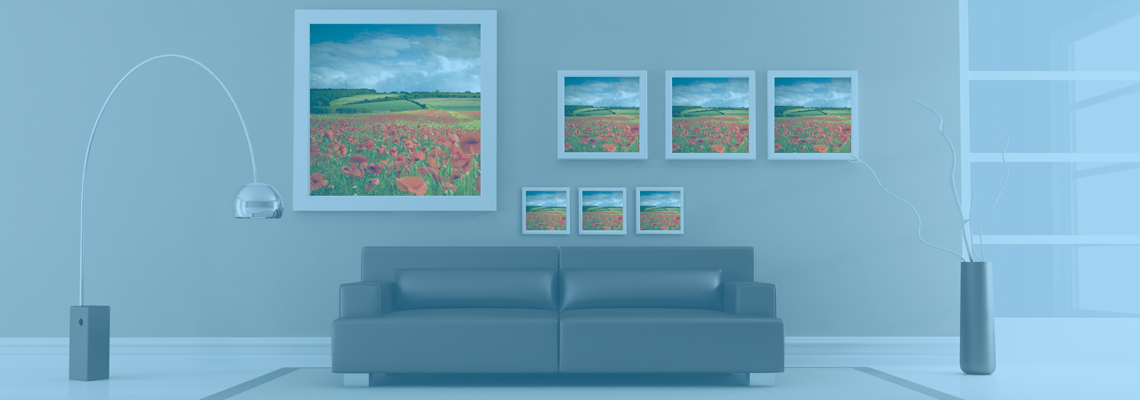
For wall décor, compare the colors and proportions of the entire group rather than judging each file alone. Matching frames, coordinated sizes, and consistent editing can make separate photographs feel like a unified display. The Photo Place can assist with prints, framed artwork, albums, and other finishing options for projects that need a polished presentation.
Keep Your Library Ready For The Next Order
Once the order is complete, preserve the structure you created. Store the original files, edited copies, and final print selections in clearly labeled folders. Back up important images in at least two separate locations, such as an external drive and a reputable cloud service.
Add new photographs to the system soon after each event. A monthly review is usually easier than an annual sorting marathon. Delete obvious mistakes, mark favorites, and record important dates while the details are still fresh. This routine keeps your digital photo collection useful instead of allowing it to become an unmanageable archive.
When your files are gathered, reviewed, and labeled, send the “Ready To Print” folder to The Photo Place online or bring it to the Youngstown-area retail location for assistance. With organized images and clear specifications, you can move confidently from digital memories to finished prints, gifts, albums, and wall décor.